Thursday, November 19, 2015

New Command Line YouTube Player And Downloader With Local Playlists Support: mps-youtube


youtube-dl is probably the most popular command line YouTube (and not only) downloader for Linux but there's a new tool that tries to do things a bit differently.


mps-youtube is a new tool which, besides being able to download YouTube videos (either the whole video or just the audio), can also search and play YouTube videos and create local playlists, all from the command line.

By default, this is basically a YouTube audio player (and downloader), but you can enable (external) video playback from its options.

The tool uses mplayer for streaming but it can also use mpv, a relatively new mplayer fork.

Update: the tool was initially called "pms-youtube" but that was quite an unfortunate name :) so the tool was renamed to mps-youtube.


Installation


Debian update: mps-youtube is now available in Debian unstable thanks to Zlatan Todoric: mps-youtube so install it using:
sudo apt-get install mps-youtube

For Ubuntu, see below.

1. mps-youtube can be installed using pip. To Install pip (Python3 version) in Ubuntu, use the following command:
sudo apt-get install python3-pip

2. Then install mps-youtube using pip:
sudo pip3 install mps-youtube

3. You'll also need mplayer, which you can install using the following command:
sudo apt-get install mplayer

Later on, if you want to upgrade mps-youtube, use this command:
sudo pip3 install mps-youtube --upgrade

Arch Linux users can install mps-youtube via AUR.

If you want to use this with MPV, you can install it in Ubuntu (Saucy and Trusty) by using THIS PPA.

mpsyt is also available for Windows and Mac OS X. See its GitHub page for installation instructions.


Usage


To run mps-youtube, use the following command:
mpsyt

To search for a video on YouTube, prefix your search with either "." or "/".

Example: to search for "pantera", use:
.pantera
Then, to play an item from the search results, enter its number. You can also use combinations, for instance use "1,2,3" to play items 1, 2 and 3, or "1-5" to play items 1 to 5. You can also use "shuffle" or "repeat" along with the track numbers, for example "shuffle 1-4".

To download an item, use:
d ITEM-NUMBER
for example, to download the 3rd search result, use "d 3".

By default, mps-youtube will only play (and download) the audio. To view (and optionally to download) the video instead, use this command:
set show_video true

By default, the tool uses mpv if found and if it's not installed, it uses mplayer. If you want to switch to mplayer, use this commands:
set player mplayer

To switch to mpv, use these commands:
set player mpv

You can find out all the available commands by simply entering "h":
Note: More documentation is available       at https://github.com/np1/mps-youtube    Searching  You can enter a search term to search whenever the program is       expecting text input. Searches must be prefixed with either       a . or / character.    When a list of items is displayed, you can use the following       commands:    Downloading  d 3 to download item 3    Selecting Items  all to play all  1 2 3 to play items 1 2 and 3  2-4 6 7-3 to play items 2 3 4 6 7 6 5 4 3  3-6 9-12 shuffle to play selected items in random order  3-6 9-12 repeat to play selected items continuously    Manipulating Items


My Current  Configuration


Enter /search-term to search or [h]elp
Key Value
order : relevance
user_order :
max_res : 2160p
player : mpv
playerargs : --ontop
encoder : 0 [None]
notifier : notify-send
checkupdate : True
show_mplayer_keys : True
fullscreen : False
show_status : True
columns : date views user:17 likes
ddir : /home/ndoshi/Downloads/music-new
overwrite : True
show_video : True
search_music : True
window_pos : top-left
window_size : 300x200
download_command : aria2c --dir=%d --out=%f %u
api_key : AIzaSyCIM4EzNqi1in22f4Z3Ru3iYvLaY8tc3bo

Wednesday, November 18, 2015

ANSIBLE singe user creation playbook extra_vars

to calll the following playbook
ansible-playbook single-user-creation-eris-farm.yml -e '{"uname":"testuser", "akey":"ssh-dss AAAAB3NzaC1kc3MAAACBALmPgekfYL5fL8PcJ/UExF5TIntjAb14FsNB6sF8xqZkRq+1zal4OBauvGEk73VoTyWceACiyTzaAkVoijzIIqKNMapGtO4IOEEvw5QySkhU1/+/MMCszdHvl51AtrKOZWFHZNdRJvBy7vpCKVmiFCvJTCrH5E+6Kom2ittrIag9AAAAFQCwbf3dzvA1QEDHMEoK+e5HOfoCDwAAAIEAhjF6SRE2O8qmHBul04SN3qpPfwTHaTYXyzSi187LhAoc9yOiAXyjWnGrZ8w/AuRjaTk1nfAjSQ3dNkTCsopm3shnjNV96GxBepY04SseXSAwlnPo1smCK84XbvUFrfzc+JbHwK6BosuH2sXThRWf6jKmnM7ptfSX/ibd7bKRwKAAAACBAK56UDDJD0092YGXQ6z0RG9c9qsXTI0BCiNjP5PNbLGc7YSfnL7JMme1n/R1PST9RXhVSHXjJ6ca2aSzz0kCSFs0pmgY0xFzNWGhU98j6hpl/Os9kJzauvXdXoAKExOhRSGHPY0rAJl8Ni0R1NM+E4PssI9/WqU1Ypz3Rcsn23OgF8 username@hostname"}'

{noformat}
---


   #MAC systems
- hosts: mac
  sudo: yes
#  vars:
#    ausers: [ uname ]
#    akeys: [ key ]

  tasks:
  - name: Create user {{uname}}
    user: name={{uname}} password="$6$3dqCf97I8iF$tcxY2fLNS/C41yixh8Bm7P.AAWB5NGybrkRlZlVpPyYAGoTrFxpth0IowidmuPODmZddSGINNNVDj/TlTdmEp1" groups="wheel" comment="{{uname}} account" shell=/bin/bash append=yes

  - name: Install Authorized key
    authorized_key: user={{uname}} manage_dir=yes state=present key="{{akey}}"

  - name:  uncomment SUDO FILE
    lineinfile: "dest=/etc/sudoers state=present regexp='^#?%wheel' line='%wheel ALL=(ALL) NOPASSWD: ALL'"
{noformat}

Sunday, November 15, 2015

Resolve “Access Is Denied” Using PSExec With a Local Admin Account

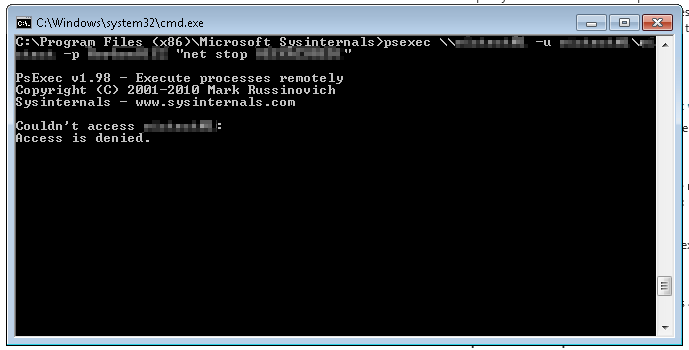
Upon trying to enable remote command execution using PSExec, I ran into an issue trying to login with a local administrator account on my remote server: Access is denied.

Access is denied. Not what I wanted to see...

Apparently, if you have an account that's a local Administrator, Remote UAC will block them from being able to do things like remote execution.

A quick way to test if this might be your issue:

  1. Access the server via filesharing (\\YOURSERVER\C$); you should be able to login with your credentials.
  2. Access the server via filesharing, but this time go to the admin share (\\YOURSERVERNAME\ADMIN$); this should fail. This is what we need to fix.

To get around this, you can make a registry change:

  1. Open RegEdit on your remote server
  2. Navigate toHKEY_LOCAL_MACHINE\SOFTWARE\Microsoft\Windows\CurrentVersion\Policies\System
  3. Add a new DWORD value called LocalAccountTokenFilterPolicy
  4. Set its value to 1
  5. Reboot your remove server
  6. Try running PSExec again from your local server

You should be able to execute remote commands.

Solution found via Admin Arsenal Support: 


Sunday, September 13, 2015

SUSE 13.1 Bottle new network configuration dhcp setup via AutoYast xml

Starting from SUSE 13.1 


<pre>
           <configure>
                <networking>
                        <dns>
                                <dhcp_hostname config:type="boolean">false</dhcp_hostname>
                                <domain>domain.com</domain>
                                <hostname>fakely-hostname</hostname>
                                <resolv_conf_policy/>
                                <write_hostname config:type="boolean">false</write_hostname>
                        </dns>
                        <ipv6 config:type="boolean">false</ipv6>
                        <keep_install_network config:type="boolean">true</keep_install_network>
                        <managed config:type="boolean">false</managed>
                </networking>
              </configure>

<!-- Untill next reboot keep DHCP on -->
<!-- Below section is for creating a static ifcfg-<interfacename> file on the fly -->


</pre>

Sunday, April 12, 2015

CORSAIR KEYBOARD K60 / K90 FIRMWARE UPGRADE ISSUE / SOLUTION KBD BOOT LOADER

THE SYMPTOMS:
- k60 plugged in, all 'standard 108' keys work, backlight does not, media keys do not, volume does not, winLock does not and so on
- Going to Start->Devices and Printers shows keyboard as 'KBD BOOT LOADER'
- You're stark raving mad, and are not going to take it anymore!

WARNING NOTES:
- This might wreck a port on your machine where you might want to plug in the k60. By 'wreck' I mean you won't be able to use it for the k60 Keyboard Plug. I recommend using a secondary machine or alternate windows install.

k60 Keyboard

STEPS:
1) Make sure you have the k60's latest software and fimware installers unzipped somewhere.
2) MOST IMPORTANT STEP Go to Start->Control Panel->Power Options->Change Plan Settings->Change Advanced Power Settings->USB Settings->USB selective suspend setting->Disabled
3) Plug your k60 into a DIRECT USB 2.0 PORT on your machine.
4) Go to Start->Devices and Printers.
5) Right-click on KBD BOOT LOADER and select 'Properties'
6) Click on the Hardware tab. You should see 'HID Keyboard Device' and another item (I forgot what it says, but it shouldn't say 'Corsair Gaming Keyboard'). Select the other item, then click 'Properties'
7) Click on the 'Change Settings' button on the first page of the Properties dialog
8) Click on 'Update Driver'
9) Select 'Browse my computer for driver software'
10) Select 'Let me pick from a list of device drivers on my computer'
11) Click 'Have Disk' It might look for your a: drive first (good old windows)
12) In the box 'copy manufacturer's files from put 'C:\Program Files (x86)\corsair\k60 firmware update\Driver\X64'
13) You should be able to select the Corsair driver somehow. When your done Your 'KBD BOOT LOADER' properties should have 'Corsair Gaming Keyboard' and 'HID Keyboard Device'
14) Select the HID Keyboard Device
15) Click 'Change Settings'
16) Click the Driver Tab
17) Click 'Uninstall'. Windows will cry about this. Let it do it's thing
18) Once you 'OK' everything they k60 won't work at all. DON'T PANIC! You should also not see KBD BOOT LOADER in Devices and Printers
19) UNINSTALL k60 EVERYTHING
20) Install the k60 Firmware Updater.
21) When the firmware is installed, start the updater application up and update the keyboard.
22) It should complete at this point. Your keyboard won't light up just now. DON'T PANIC!
23) Unplug the k60 from it's current port. Plug it into another one.
24) Start the Software Installer and let it complete.
25) Keyboard should light up.

Tuesday, February 17, 2015

Mount SAMBA (SMBFS) share on OSX MAC APPLE

Mount SAMBA (SMBFS) share on OSX MAC APPLE (Mavericks users)

Modify the /etc/auto_master (sudo vi /etc/auto_master) file and add the following line:

/- auto_smb -nosuid

Create a folder on your system to place your mount in:

sudo mkdir /mnt

Create an /etc/auto_smb (sudo vi /etc/auto_smb) file that contains the following:

/mnt/mount_point -fstype=smbfs,soft ://user:pass@smbserver/share

Next, run the following command to update your settings:

sudo automount -vc

A few notes:

  • The soft parameter specifies OSX to not halt on failure to connect to the SMB server during boot.
  • When entering the password, it's better to URL encode it as some special characters will cause the automount to fail silently.
  • nosuid parameter in the /etc/auto_master file prevents OSX from mounting the resource as readonly by root (see update below!).

Tuesday, December 9, 2014

Is it possible to "hotplug" a CPU on a running Red Hat Enterprise Linux 5 system?

Issue

  • Is it possible to "hotplug" a CPU on a running Red Hat Enterprise Linux system?
  • How to dynamically enable or disable a CPU on a running system.


Resolution

Red Hat Enterprise Linux 5 supports the cpu-hotplug mechanism, which allows for CPUs to be dynamically disabled and re-enabled on a system without requiring a system reboot.
In order to disable a CPU core in a running machine, use the file /sys/devices/system/cpu/cpuX/online.

The following command will disable a CPU:
    # echo 0 > /sys/devices/system/cpu/cpuX/online
Where X is the ID of the CPU as determined from /proc/cpuinfo.

To re-enable the CPU, run:
   # echo 1 > /sys/devices/system/cpu/cpuX/online

Note: CPU hot-plugging will only work if physical hotplug is supported by the hardware.
Note: There are some architectures in which a CPU cannot be disabled due to a dependency on a certain CPU. In such cases you will notice that the /sys/devices/system/cpu/cpuN/online file is missing or not writeable.

For further details on CPU hotplugging, see this file:
/usr/share/doc/kernel-doc-2.6.18/Documentation/cpu-hotplug.txt
The documentation files are in the kernel-doc package, which can be installed from RHN.